Running Tests
To dispatch Request or Group request and execute its tests, first select it.
To execute the Request or Group once, with no timeout, click the Single Run button (outlined "play") next to the name at the top of the screen, or press Ctrl + Enter.
Running a request without a timeout can be useful when interactively debugging a local API.
If you want to execute the Request or Group for the specified number of runs, click on the Test button (filled "play"), or press Ctrl + Shift + Enter .
Apicize will dispatch your request, execute test scripts (if any) and display the results.
Multiple Runs and Execution Concurrency
Apicize can execute your Request or Group multiple times, and tests can be executed Concurrently or Sequentially.
Sequential execution means that each call will occur one after the other. Use sequential concurrency if a request depends upon the output of a previous request (or group).
Concurrent execution means that a Group's child requests and/or groups will be launched concurrently. This can be used to load test an API or testing for unexpected state retention issues.
Select Sequential Group Item Execution for a Group when outputting values from a Request's test to be used by subsequent Requests
You can run a Request or Request Group multiple times by setting "# of Runs" to the value you want. When executing, make sure to use the button when executing a group for multiple runs.
For example, assume you have a Group with two requests ("Request A" and "Request B"), and that you will launch 2 runs. Here are how Execution Mode values control execution:
| Request Execution | Multiple Run Execution | Execution Order |
|---|---|---|
| Sequential | Sequential | Request A then Request B, then Request A then Request B |
| Concurrent | Sequential | Request A and Request B, then Request A and Request B |
| Sequential | Concurrent | Request A then Request B, and Request A then Request B |
| Concurrent | Concurrent | Request A and Request B, and Request A and Request B |
In the configuration shown below, requests within the group will execute sequentially, but multiple runs will be run concurrently. This will allow the ID generated when "Create quote" is called to be passed to the remaining requests, and to make sure that create, read, update and delete operations happen in the correct order.
Data Sets
Data Sets are lists of data records. They can be used to test multiple data scenarios without having to create duplicative tests. Data Sets can be defined as either JSON or CSV. JSON data can be stored within a workbook or in a separate file. CSV must always be stored in a separate file. Data Sets can be used when executing tests within the application from the Apicize CLI runner.
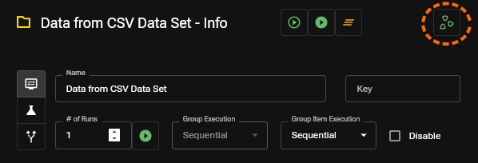
A green "seed" indicator at the top right of the Request and Request Group info panes indicates a Data Set has been defined. Clicking on this will display the Defaults where you can change or clear the Data Set selection.
Some things to keep in mind when using Data Sets:
- Each row will be executed sequentially for Requests and Groups being tested. The configured Number of Runs and Execution Concurrency, etc. will all be applied for each record
- As a security measure, external Data Set files must be in the same directory or child directory as the workbook.
- When using a JSON file, if the file contains a scalar value (string, number, etc.) or an array of scalar values, a variable named data will be set that contains that value
- Although you can specify a Data Set file for any Request or Group (as well as a default for the Workspace itself), only one Data Set can be active at any time. There is no support for testing with "nested" data sets. This means that when executing a Request or Request Group, any Data Set configured for child Requests or Groups will be ignored.